
Wednesday, May 13, 2026 | 4 minutes
Zoomable Image - Creating a Zoom Effect
I was looking at an article about being careful with AI coding today. And while the article was extremely insightful about the dangers of relying on AI coding agents to write all the code for you, another thing that stood out to me was the zoom in effect on the image.
I was curious about how the code worked and began digging in to it. It made use of some Vue.js functionality, but I figured that it was really just some DOM manipulation that I could figure out how to replicate to use as a Hugo shortcode on my blog site.
I started by having AI (ironic, I know, given the nature of the article) examine the effect and explain how it was accomplished. It explained that clicking on the image would trigger a lightbox overlay, a feature of Vue, that injects an IMG tag onto the overlay and does some CSS transition effects to zoom the image up to full size. Then, clicking on the overlay reverses the zoom effect, then removes the overlay from the DOM.
Seems simple enough, but I’m not using Vue. I should be able to replicate that with some simple JavaScript and CSS. Here’s what I came up with:
Hugo Short Code
We’ll start out by setting up our Hugo short code. We’ll follow the source’s pattern and put an IMG tag inside of a FIGURE tag in our HTML. Our image needs a source and alt text
{{ $src := .Get "src" }}
{{ $alt := .Get "alt" | default "" }}
<figure class="zoomable-figure">
  <img
    src="{{ $src }}"
    alt="{{ $alt }}"
    class="zoomable-img"
    aria-haspopup="dialog"
    aria-expanded="false"
    data-state="closed"
  />
</figure>
JavaScript
Next, we’ll need some JavaScript to do our manipulation. We’ll need a couple of functions. One to create the panel and zoom in. The other to reverse that. We’ll also add a function to close the overlay with the escape key on the keyboard.
(function () {
  let backdrop, container, overlayImg, activeThumb;

  function openZoom(thumb) {
    activeThumb = thumb;
    const rect = thumb.getBoundingClientRect();

    // Backdrop
    backdrop = document.createElement('div');
    backdrop.className = 'zoom-backdrop';
    document.body.appendChild(backdrop);

    // Container (click to close)
    container = document.createElement('div');
    container.className = 'zoom-container';
    container.setAttribute('role', 'dialog');
    container.setAttribute('aria-modal', 'true');
    document.body.appendChild(container);

    // Overlay image
    overlayImg = document.createElement('img');
    overlayImg.src = thumb.src;
    overlayImg.alt = thumb.alt;
    overlayImg.className = 'zoom-overlay-img';
    container.appendChild(overlayImg);

    // Calculate origin transform so image starts at the thumbnail's position
    const vw = window.innerWidth;
    const vh = window.innerHeight;
    const scaleX = rect.width / vw;
    const scaleY = rect.height / vh;
    const tx = rect.left + rect.width / 2 - vw / 2;
    const ty = rect.top + rect.height / 2 - vh / 2;

    // Start position: small + positioned over the thumbnail
    overlayImg.style.transform = `translate3d(${tx}px, ${ty}px, 0) scale(${scaleX}, ${scaleY})`;
    overlayImg.style.opacity = '0';

    // Update thumb state
    thumb.setAttribute('aria-expanded', 'true');
    thumb.setAttribute('data-state', 'open');
    thumb.classList.remove('cursor-zoom-in');

    // Trigger animation on next frame
    requestAnimationFrame(() => {
      requestAnimationFrame(() => {
        backdrop.classList.add('zoom-backdrop--visible');
        overlayImg.style.transform = 'translate3d(0,0,0) scale(1)';
        overlayImg.style.opacity = '1';
      });
    });

    container.addEventListener('click', closeZoom);
    document.addEventListener('keydown', onKeyDown);
  }

  function closeZoom() {
    if (!activeThumb || !overlayImg) return;

    const rect = activeThumb.getBoundingClientRect();
    const vw = window.innerWidth;
    const vh = window.innerHeight;
    const scaleX = rect.width / vw;
    const scaleY = rect.height / vh;
    const tx = rect.left + rect.width / 2 - vw / 2;
    const ty = rect.top + rect.height / 2 - vh / 2;

    // Animate back to thumbnail
    overlayImg.style.transform = `translate3d(${tx}px, ${ty}px, 0) scale(${scaleX}, ${scaleY})`;
    overlayImg.style.opacity = '0';
    backdrop.classList.remove('zoom-backdrop--visible');

    overlayImg.addEventListener('transitionend', () => {
      backdrop.remove();
      container.remove();
      activeThumb.setAttribute('aria-expanded', 'false');
      activeThumb.setAttribute('data-state', 'closed');
      activeThumb.classList.add('cursor-zoom-in');
      activeThumb = null;
    }, { once: true });

    document.removeEventListener('keydown', onKeyDown);
  }

  function onKeyDown(e) {
    if (e.key === 'Escape') closeZoom();
  }

  document.addEventListener('click', function (e) {
    const img = e.target.closest('img[data-state="closed"]');
    if (img && img.closest('.zoomable-figure')) {
      openZoom(img);
    }
  });
})();
And we need to reference the JavaScript file in my header template. You’ll need to update the file reference to wherever you put your file.
{{ $js := resources.Get "js/zoom.js" | minify }}
<script defer src="{{ $js.RelPermalink }}"></script>
CSS
Lastly, we’ll need our CSS classes for the transitions. I suck at CSS so I had Claude create these for me.
.zoomable-img {
  cursor: zoom-in;
  will-change: transform;
}

.zoom-backdrop {
  position: fixed;
  inset: 0;
  background: rgba(0, 0, 0, 0.75);
  backdrop-filter: blur(4px);
  opacity: 0;
  transition: opacity 0.3s ease;
  z-index: 999;
  will-change: opacity;
}

.zoom-backdrop--visible {
  opacity: 1;
}

.zoom-container {
  position: fixed;
  inset: 0;
  display: flex;
  align-items: center;
  justify-content: center;
  z-index: 1000;
  cursor: zoom-out;
}

.zoom-overlay-img {
  width: 100vw;
  height: 100vh;
  object-fit: contain;
  transition: transform 0.35s cubic-bezier(0.4, 0, 0.2, 1),
              opacity 0.35s ease;
  will-change: transform, opacity;
}
I added it to my existing image CSS file, but if you put this in a new CSS file you’ll also need to make sure to add a reference in your base templates.
Let’s Zoom
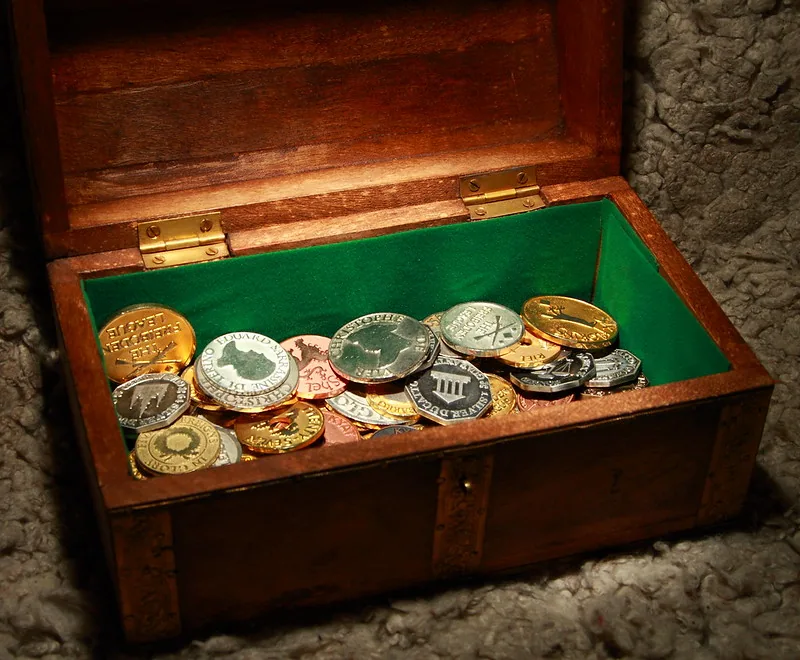
Putting it all together. Here’s a couple examples:
 |  |